# What is ToyStack?
ToyStack is a new-age cloud platform -- without a learning curve.
We instantly run your stack in an auto-scaling Kubernetes environment with security, logging, and CI/CD out-of-the-box. So you can focus on code rather than infrastructure.
Start deploying your apps on ToyStack in minutes.
## Why ToyStack?
We have taken the best-practices and implementations of an enterprise-grade DevOps pipeline and made it available to your technology stack -- in a single-click. Here are some of the reasons why we think it's awesome
* **CI/CD out-of-the-box.** The pipeline from your git repos to the servers is pre-built.
* Every app runs on a **Kubernetes cluster, by default**. We take care of scaling it up and down to manage traffic and costs.
* It lets you **compose your entire technology stack** and run it as one. Microservices, databases, caches, queues and other peripherals are all interconnected -- we run them together
* Ability to **create ephemeral environments** for testing or development work -- spin up your entire technology stack for minutes, hours or days.
* **Observability built-in.** We've plugged in all the logging and monitoring tools you'll need already -- simply view them on the dashboard.
* **Enterprise-grade security** keeps your entire infrastructure secure from attacks, bad-actors, mistakes or vulnerabilities.
## Quickstarts
## Step 2: Allow ToyStack to access your repositories
## Step 3: You're done! Go to the ToyStack Dashboard
With Github integrated, ToyStack can start deploying your apps. Start the process from the dashboard.
# BitBucket Installation
## Step 1: Install ToyStack App on BitBucket
ToyStack exists on the BitBucket Marketplace. You can use the below link to install it.
## Step 2: Allow ToyStack to access your repositories
## Step 3: You're done! Go to the ToyStack Dashboard
With Github integrated, ToyStack can start deploying your apps. Start the process from the dashboard.
# Environment Variables Setup
# Deploying with Docker
yo
YO YO
# Connecting your repository
# Custom Domains and External Domains
Assign unique domains to various branches in your repository to customize deployments accordingly, including for production, development, or other use cases.
You can also make use of External Domain feature we offer, where you can configure each domain to point to a different Git branch or redirect to another external domain.
# Databases
Instant Database Provisioning
Our database feature simplifies the creation process, allowing you to provision database instances tailored to your testing needs. With just a name and password, generate a fully functional database ready for immediate use, saving you time and hassle.
## Please follow the steps to set up your new database instance:
### Step 1: Click on the CREATE A NEW DATABASE button.
### Step 2: Select Database Type
You can create a new database by clicking on the PostgreSQL database.
### Step 3: Setup Database
Provide the database name of your choice, Postgres version and enter description. Then click on CREATE DATABASE button to activate it.
### Step 4: View your Database Plan Details and choose a Plan.
Click on create database and choose a database plan of your requirement and proceed with payment and activation.
### Step 5: Proceed with Payment and Activation
Click on proceed with payment and activation button and then choose the method of payment for database activation.
Once the payment is successful and your purchase is confirmed, GO TO DATABASE DASHBOARD.
### Step 6: Plan Activation
Click on Activate Now button, in order to activate and initialize your database.
### Step 7: Set up your Password to Activate the Database
Set up your password to activate the database and save it securely for future use and reference.
### Step 9 : View your Database Credentials
You can now view your database credentials such as Host name, User Name, Database Name and Port number and start using it for your project/application.
### Step 10: Delete Database
You can also choose to delete your database at any point of time, if not required by clicking on DELETE database button provided.
# Virtual OS
These features are upcoming and are in the alpha test phase
## **Welcome to ToyStack Virtual OS Documentation**
#### **Build, Interact, and Deploy Desktop AI Agents**
**ToyStack Virtual OS** empowers developers to build and run **desktop AI agents** seamlessly within a virtualized operating system. With a focus on simplicity and performance, ToyStack provides a secure, scalable environment for your most demanding AI and automation workflows.
***
#### **What You Can Do with ToyStack Virtual OS**
* **Run Desktop AI Agents:** Launch and manage AI agents designed for desktop environments.
* **Streamlined Interactions:** Execute commands, manipulate UI elements, and capture real-time screenshots.
* **Seamless Integrations:** Connect with external AI tools like **Claude** for advanced functionality.
* **Ephemeral Environments:** Start and stop instances effortlessly, ensuring data privacy and security.
***
#### **Quickstart**
1. **Start an Instance:**\
Begin your journey by launching a **ToyStack Virtual OS instance**. It's as simple as calling `instance.start()` in your workflow.
2. **Interact with the OS:**\
Use built-in tools like `bash`, `computer`, `screenshot`, and `edit` to interact with the virtual environment programmatically.
3. **Build AI Agents:**\
Leverage the power of ToyStack's virtualized OS to design and deploy AI-driven desktop agents.
4. **Integrate with Claude (Optional):**\
Optionally connect ToyStack with **Claude** to enable computer-use actions and leverage cutting-edge AI capabilities.
5. **Stop the Instance:**\
When you're done, stop the instance to securely end the session and delete all stored data.
***
#### **Why ToyStack Virtual OS?**
* **Secure:** Your data is isolated and protected in every session.
* **Scalable:** Easily manage multiple instances for development, testing, and production.
* **Developer-Friendly:** Tools and APIs designed with simplicity in mind.
***
#### **Upcoming Features**
Exciting features are in the pipeline! Soon, you'll be able to:
* Automate complex workflows with **desktop AI agents**.
* Enhance real-time interactions with additional tools and integrations.
* Access advanced analytics and monitoring for your instances.
***
***
**ToyStack Virtual OS** – The next step in developer-centric virtualization for AI and automation.
# Getting Started
This page outlines upcoming features on how to build and run desktop AI agents seamlessly within ToyStack's virtual operating system. These features are currently under development and not yet live.
## Deploy your instance
**Step-1**
Generate API key
Sign up on our [dashboard](https://dashboard.toystack.ai/). An API key will be generated for you automatically.
**Step-2**
Install SDK
Install the Python SDK with pip.
```
pip install toystack-virtual-os
```
**Step-3**
Configure client
Configure the client with your API key.
```python
from toystack import ToystackVirtualOs
client = ToystackVirtualOs(api_key="your_api_key")
```
**Step-4**
Start instance of virtual os
```python
instance = client.start(instance_type="virtual_os" )
```
#### **Interact with the Instance**
You can interact with your ToyStack Virtual OS instance using various tools such as `screenshot`, `bash`, `computer`, and `edit`. Below are examples of how to perform common actions:
```python
# Get the status of the instance
status = instance.get_status()
# Get the streaming URL for interacting with the instance
stream_url = instance.get_stream_url()
# Capture a screenshot of the current instance view
base_64_image = instance.screenshot()
# Move the mouse cursor to specific coordinates
result = instance.computer(
action="mouse_move",
coordinate=[200, 100]
)
# Perform a left-click action
result = instance.computer(
action="left_click"
)
# Execute a bash command within the instance
result = instance.bash(
command="ls -la"
)
```
***
#### **Integrate with Claude (Optional)**
You can optionally connect **Claude Computer Use** to your ToyStack Virtual OS instance using `BashTool`, `ComputerTool`, `EditTool`, and `ToolResult`.
```python
from toystack.tools import BashTool, ComputerTool, EditTool, ToolResult
from anthropic import Anthropic
# ToolCollection definition omitted for brevity; see full example
tool_collection = ToolCollection(
ComputerTool(instance),
BashTool(instance),
EditTool(instance)
)
# Initialize Anthropic Client
anthropic_client = Anthropic(api_key="your_api_key")
# Send a message with tools enabled
response = anthropic_client.beta.messages.create(
model="claude-3-5-sonnet-20241022",
max_tokens=4096,
messages=messages,
system=[{"type": "text", "text": SYSTEM_PROMPT}],
tools=tool_collection.to_params(),
betas=["computer-use-2024-10-22"]
)
```
> **Note:** This is an optional integration. If you are using Claude's Computer Use, ensure you have the correct API keys and configurations.
***
#### **Stop the Instance**
When you are done with your session, it is recommended to stop the instance. This action will delete all data stored during the session.
```python
# Stop the instance
instance.stop()
```
***
#### **Upcoming Features**
ToyStack is actively developing additional features to support **desktop AI agents** and enhanced tooling within the Virtual OS. Stay tuned for updates as these features are rolled out in future releases
# Claude Integration
How to connect the remote cloud-os instance to your code and configure the anthropic claude.
## Basic Setup
import asyncio
import os
import json
import base64
from io import BytesIO
from PIL import Image
from IPython.display import display
from typing import Any
from datetime import datetime

# Import relevant ToyStack libraries
from toystack import ToyStackClient
from toystack.tools import BashTool, ComputerTool, EditTool, ToolResult

# Initialize ToyStack Client
toystack_client = ToyStackClient(api_key="your_toystack_api_key")
instance = toystack_client.start_instance(instance_type="medium")

# Define Anthropic Client if still using Claude (Optional)
from anthropic import Anthropic
anthropic_client = Anthropic(api_key="your_claude_api_key")

# System prompt adapted for ToyStack
SYSTEM_PROMPT = f"""<SYSTEM_CAPABILITY>
* You are utilizing an Ubuntu virtual machine managed via ToyStack with internet access.
* You can install Ubuntu applications using the bash tool. Use curl instead of wget.
* Firefox (firefox-esr) is pre-installed. To open it, click the Firefox icon.
* GUI applications can be started using the bash tool by setting export DISPLAY=:1 and using a subshell, e.g., "(DISPLAY=:1 xterm &)". GUI apps will appear in the desktop environment but may take some time. Use screenshots to confirm their state.
* For commands generating extensive text outputs, redirect the output to a tmp file and utilize grep or other tools to parse it.
* When browsing a page, either zoom out to view the entire content or scroll through it thoroughly before deciding that something isn't present.
* Chain multiple function calls where possible to optimize execution.
* The current date is {datetime.today().strftime('%A, %B %-d, %Y')}.
</SYSTEM_CAPABILITY>

<IMPORTANT>
* When using Firefox, if a startup wizard appears, IGNORE IT. Do not click "skip this step." Instead, navigate to the address bar, enter the URL or search term directly.
* If you encounter a PDF and need to extract text, determine its URL, use curl to download it, install pdftotext, and convert it to a text file for easier reading.
</IMPORTANT>"""

# Example usage of ToyStack tools
bash_tool = BashTool(instance=instance)
computer_tool = ComputerTool(instance=instance)
edit_tool = EditTool(instance=instance)

# Example function to execute a bash command using ToyStack's BashTool
async def run_bash_command(command: str):
    result = await bash_tool.run(command)
    print("Command Output:", result)

# Example usage
async def main():
    await run_bash_command("echo 'Hello from ToyStack!'")
    # Add more commands or tool usage as needed

# Run the script
asyncio.run(main())
## Define Collection Tool
{% code title="Main.py" %}
```python
from typing import Any, cast
# Import ToyStack tools
from toystack.tools import BashTool, ComputerTool, EditTool, ToolResult
class ToolCollection:
"""A collection of ToyStack-defined tools."""
def __init__(self, *tools):
self.tools = tools
self.tool_map = {tool.to_params()["name"]: tool for tool in tools}
def to_params(self) -> list:
"""Convert tools to their parameter representations."""
return [tool.to_params() for tool in self.tools]
async def run(self, *, name: str, tool_input: dict[str, Any]) -> ToolResult:
"""Run a tool by name with the provided input."""
tool = self.tool_map.get(name)
if not tool:
return None
try:
r = await tool(**tool_input)
return r
except Exception as e:
print(f"Error running tool {name}: {e}")
return None
def _make_api_tool_result(result: ToolResult, tool_use_id: str) -> dict:
"""Convert a ToolResult into the API's expected format."""
tool_result_content: list[dict | str] = [] # Changed this line
is_error = False
if result.error:
is_error = True
tool_result_content = result.error
else:
if result.output:
tool_result_content.append({
"type": "text",
"text": result.output,
})
if result.base64_image:
tool_result_content.append({
"type": "image",
"source": {
"type": "base64",
"media_type": "image/png",
"data": result.base64_image,
},
})
return {
"type": "tool_result",
"content": tool_result_content,
"tool_use_id": tool_use_id,
"is_error": is_error,
}
def _response_to_params(response):
"""Convert a response to the API's parameter format."""
res = []
for block in response.content:
if block["type"] == "text":
res.append({"type": "text", "text": block["text"]})
else:
res.append(block)
return res
def _maybe_filter_to_n_most_recent_images(
messages: list[dict],
images_to_keep: int,
min_removal_threshold: int,
):
"""Filter messages to retain only the most recent images."""
if images_to_keep is None:
return messages
tool_result_blocks = cast(
list[dict],
[
item
for message in messages
for item in (
message["content"] if isinstance(message["content"], list) else []
)
if isinstance(item, dict) and item.get("type") == "tool_result"
],
)
total_images = sum(
1
for tool_result in tool_result_blocks
for content in tool_result.get("content", [])
if isinstance(content, dict) and content.get("type") == "image"
)
images_to_remove = total_images - images_to_keep
images_to_remove -= images_to_remove % min_removal_threshold
for tool_result in tool_result_blocks:
if isinstance(tool_result.get("content"), list):
new_content = []
for content in tool_result.get("content", []):
if isinstance(content, dict) and content.get("type") == "image":
if images_to_remove > 0:
images_to_remove -= 1
continue
new_content.append(content)
tool_result["content"] = new_content
```
{% endcode %}
## Sampling Loop
{% code title="Main.py" %}
```python
from PIL import Image
from io import BytesIO
import base64
from typing import Any, cast
from toystack.tools import BashTool, ComputerTool, EditTool, ToolResult
from toystack import ToyStackClient
# Function to display a base64 image
def display_base64_image(base64_string, max_size=(800, 800)):
image_data = base64.b64decode(base64_string)
image = Image.open(BytesIO(image_data))
# Resize if larger than max_size while maintaining aspect ratio
if image.size[0] > max_size[0] or image.size[1] > max_size[1]:
image.thumbnail(max_size, Image.Resampling.LANCZOS)
display(image)
# Initialize ToyStack Client
toystack_client = ToyStackClient(api_key="your_toystack_api_key")
instance = toystack_client.start_instance(instance_type="medium")
async def sampling_loop(command: str):
"""
Run the sampling loop for a single command until completion.
"""
messages: list[dict] = []
tool_collection = ToolCollection(
ComputerTool(instance),
BashTool(instance),
EditTool(instance),
)
# Add initial command to messages
messages.append({
"role": "user",
"content": [{"type": "text", "text": command}],
})
while True:
_maybe_filter_to_n_most_recent_images(messages, 2, 2)
# Simulate getting ToyStack's response (if there is an API interaction similar to anthropic_client)
response = {
# Replace with actual ToyStack response call if available
"content": [
{"type": "text", "text": "Simulated response from ToyStack"}
]
}
# Convert response to params
response_params = _response_to_params(response)
# Process response content and handle tools before adding to messages
tool_result_content = []
for content_block in response_params:
if content_block["type"] == "text":
print(f"\nAssistant: {content_block['text']}")
elif content_block["type"] == "tool_use":
print(f"\nTool Use: {content_block['name']}")
print(f"Input: {content_block['input']}")
# Execute the tool
result = await tool_collection.run(
name=content_block["name"],
tool_input=cast(dict[str, Any], content_block["input"])
)
print(f"Result: {result}")
if content_block['name'] == 'bash' and not result:
result = await tool_collection.run(
name="computer",
tool_input={"action": "screenshot"}
)
print("Updated result: ", result)
if result:
print("Converting tool result: ", result)
tool_result = _make_api_tool_result(result, content_block["id"])
print(f"Tool Result: {tool_result}")
if result.output:
print(f"\nTool Output: {result.output}")
if result.error:
print(f"\nTool Error: {result.error}")
if result.base64_image:
print("\nTool generated an image (base64 data available)")
display_base64_image(result.base64_image)
tool_result_content.append(tool_result)
print("\n---")
# Add assistant's response to messages
messages.append({
"role": "assistant",
"content": response_params,
})
# If tools were used, add their results to messages
if tool_result_content:
messages.append({
"role": "user",
"content": tool_result_content
})
else:
# No tools used, task is complete
break
```
{% endcode %}
## Execute
```python
# Example commands using ToyStack
# command = "Open a spreadsheet and enter dummy data into it. Do this using the bash tool (launch LibreOffice Calc from bash using the DISPLAY=:1 setting)."
# command = "Open Firefox using the bash tool (launch from bash using the DISPLAY=:1 setting) and search Y Combinator."
# command = "The Y Combinator search results page is currently open in the browser. Take a look, go into the Y Combinator website, and start an application."
# command = "Firefox is currently open in the browser. Do some research on Chamath Palihapitiya."
# command = "Create a new file called temp.py on the desktop and write some code in it (FastAPI server code). Create the file using mouse right-click, open it in text editor using right-click, and write there."
command = "A text editor is currently open on the screen. Write some code in it (FastAPI server code)."
# Importing necessary modules
from toystack.tools import BashTool, ComputerTool, EditTool
from toystack import ToyStackClient
# Initialize ToyStack Client
toystack_client = ToyStackClient(api_key="your_toystack_api_key")
instance = toystack_client.start_instance(instance_type="cloud-os")
async def sampling_loop(command: str):
"""
Run the sampling loop for a single command until completion using ToyStack.
"""
messages: list[dict] = []
tool_collection = ToolCollection(
ComputerTool(instance),
BashTool(instance),
EditTool(instance),
)
# Add initial command to messages
messages.append({
"role": "user",
"content": [{"type": "text", "text": command}],
})
while True:
_maybe_filter_to_n_most_recent_images(messages, 2, 2)
# Simulate getting ToyStack's response (if there is an API interaction similar to anthropic_client)
response = {
# Replace with actual ToyStack response call if available
"content": [
{"type": "text", "text": "Simulated response from ToyStack"}
]
}
# Convert response to params
response_params = _response_to_params(response)
# Process response content and handle tools before adding to messages
tool_result_content = []
for content_block in response_params:
if content_block["type"] == "text":
print(f"\nAssistant: {content_block['text']}")
elif content_block["type"] == "tool_use":
print(f"\nTool Use: {content_block['name']}")
print(f"Input: {content_block['input']}")
# Execute the tool
result = await tool_collection.run(
name=content_block["name"],
tool_input=cast(dict[str, Any], content_block["input"])
)
print(f"Result: {result}")
if content_block['name'] == 'bash' and not result:
result = await tool_collection.run(
name="computer",
tool_input={"action": "screenshot"}
)
print("Updated result: ", result)
if result:
print("Converting tool result: ", result)
tool_result = _make_api_tool_result(result, content_block["id"])
print(f"Tool Result: {tool_result}")
if result.output:
print(f"\nTool Output: {result.output}")
if result.error:
print(f"\nTool Error: {result.error}")
if result.base64_image:
print("\nTool generated an image (base64 data available)")
display_base64_image(result.base64_image)
tool_result_content.append(tool_result)
print("\n---")
# Add assistant's response to messages
messages.append({
"role": "assistant",
"content": response_params,
})
# If tools were used, add their results to messages
if tool_result_content:
messages.append({
"role": "user",
"content": tool_result_content
})
else:
# No tools used, task is complete
break
# Run the sampling loop for this command
await sampling_loop(command)
```
# Node JS
Instructions for connecting your NodeJS apps and deploying them on ToyStack
### Step 1: Import and Activate repository
Click on import and activate repository button
Now connect your repositories or click on sync with Github.
Configure Toystack application
### Step 2: Connect repository to Toystack
Connect all repositories or selected repositories you want to deploy on toystack
You will be able to see all the connected repositories in the dashboard and click on them to proceed with the project configuration
### Step 3: Configure project settings
* Choose Node as framework if you are using node, and if you are using Dockerfile in your project you can use docker as an option.
* Provide build command, dependency installation command, root directory and give right port number.
* You can provide environmental variables if present or choose to save changes and proceed with next step.
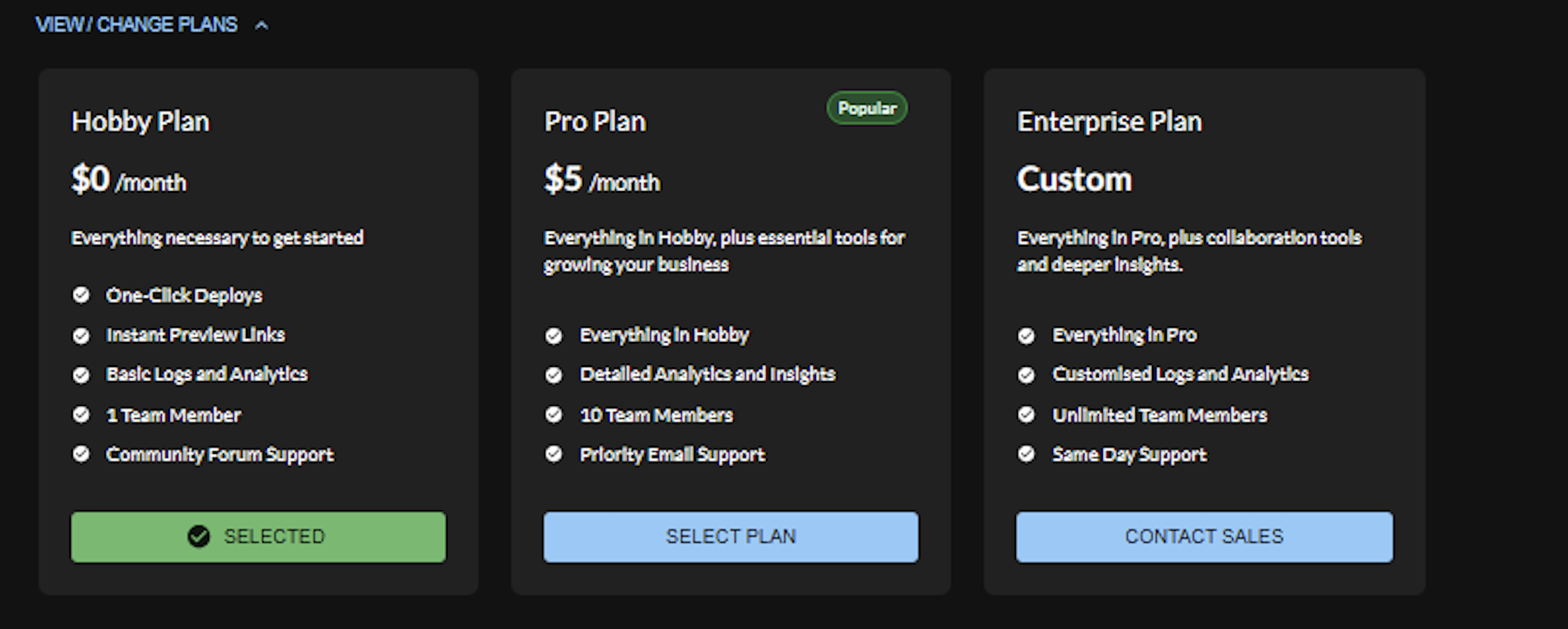
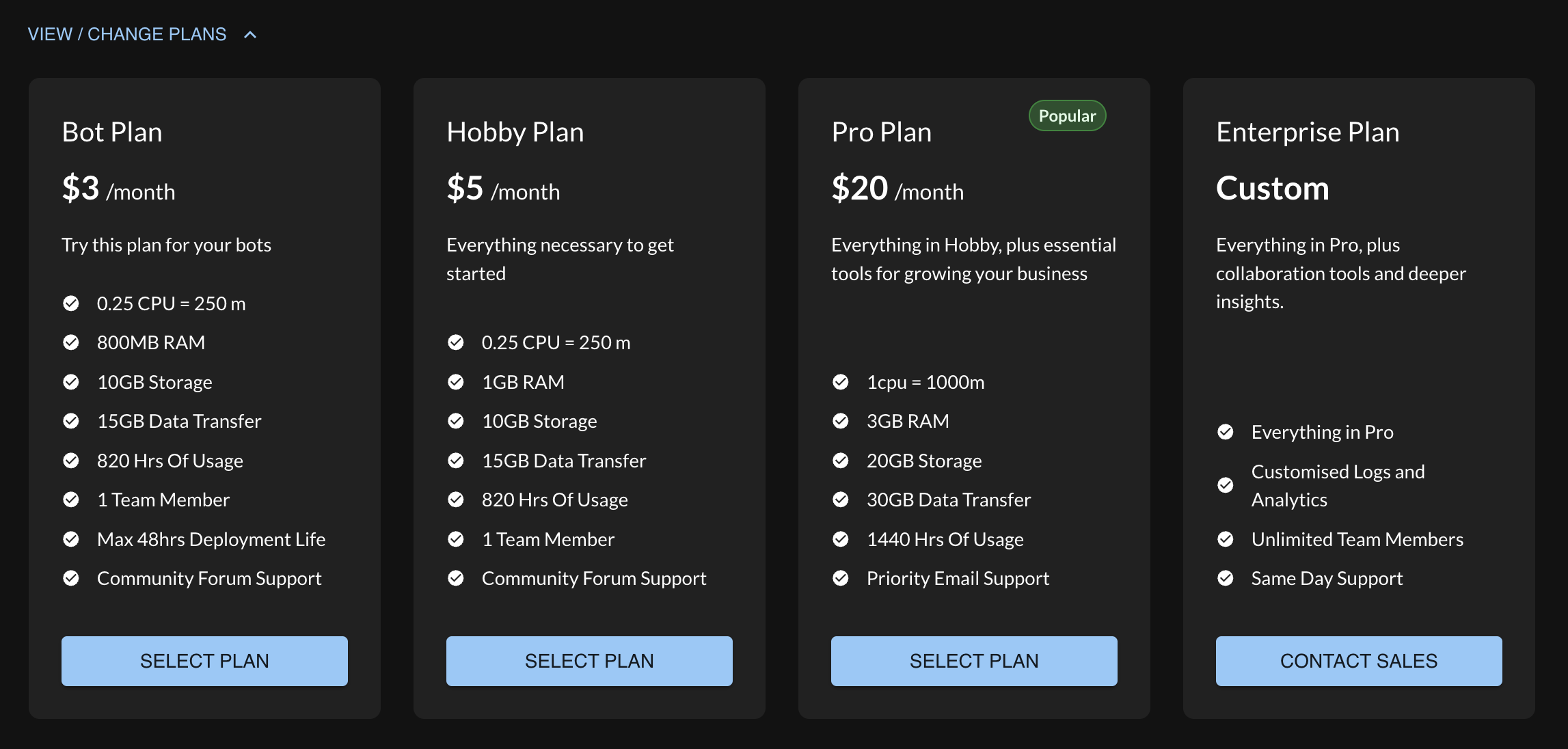
## Step 4: Choose a plan
Choose a plan of your choice and activate it
After the successful payment, you will be able to see your plan details like this
### Step 5: Setting up repository
You can setup your repository with the following options and you can see all the information related to your repository
You can select the time you want your build to last from the settings
### Step 6: Custom domains and environment variables
* You can also assign custom domain name to various branches in your repository.
You can either drag and drop the env file or manually enter it
### Step 7: Deploy
* Go to deployments and select deploy from branch.
* Choose branch and deployment validity and click on DEPLOY.
### Step 8: View deployed application
* Once deployment is successful, click the URL generated.
* Access your node application through the URL.
* you can monitor your build and application logs along with the analytics.
# Django
Instructions for connecting your Django apps and deploying them on ToyStack
## Step 1: Ensure your app is Dockerised
ToyStack uses docker to deploy your application and will look for a `Dockerfile` in the top-level of your project structure.
You can either use your own `Dockerfile` or use the following template:
```docker
# Use an official Python runtime as a parent image
FROM python:3.12
# Set environment variables for Python
ENV PYTHONDONTWRITEBYTECODE 1
ENV PYTHONUNBUFFERED 1
# Set the working directory to /code
WORKDIR /code
# Copy only the requirements file
COPY requirements.txt /code/
# Install any needed packages specified in requirements.txt
RUN pip install --no-cache-dir -r requirements.txt
# Copy the current directory contents into the container at /code
COPY . /code/
# Expose the port that the app will run on
EXPOSE 8000
# Run the application
CMD ["python", "manage.py", "runserver", "0.0.0.0:8000"]
```
## Step 2: Import your Git repository
Go to the [ToyStack Dashboard](https://dashboard.toystack.ai) and create a new project using your repository.
## Step 3: Input environment variables
{% hint style="info" %}
Please ensure the `Framework Preset` is set to `DOCKER`. The rest of the variables can be set as required for your project.
Also ensure the `PORT` number matches the one specified in your`Dockerfile`
{% endhint %}
For detailed instructions, please see the [Environment Variables](/get-started/environment-variables-setup) page.
## Step 4: Choose a plan
## Step 5: Deploy
Simply select the branch you want to deploy, its deployment validity and ToyStack will deploy it
# Flask
Instructions for connecting your Flask apps and deploying them on ToyStack
## Step 1: Ensure your app is Dockerised
ToyStack uses docker to deploy your application and will look for a `Dockerfile` in the top-level of your project structure.
You can either use your own `Dockerfile` or use the following template:
```docker
FROM python:3.8
ENV PYTHONUNBUFFERED 1
RUN mkdir /workdir
WORKDIR /workdir
COPY requirements.txt /workdir/
RUN pip install --upgrade pip wheel
RUN pip install -r requirements.txt
COPY . /workdir/
CMD ["python", "-m", "flask", "run", "--host=0.0.0.0", "--port=5000"]
```
## Step 2: Import your Git repository
Go to the [ToyStack Dashboard](https://dashboard.toystack.ai) and create a new project using your repository.
## Step 3: Input environment variables
{% hint style="info" %}
Please ensure the `Framework Preset` is set to `DOCKER`. The rest of the variables can be set as required for your project.
Also ensure the `PORT` number matches the one specified in your `Dockerfile`
{% endhint %}
For detailed instructions, please see the [Environment Variables](/get-started/environment-variables-setup) page.
## Step 4: Choose a plan
## Step 5: Deploy
Simply select the branch you want to deploy, its deployment validity and ToyStack will deploy it
# Go
Instructions for connecting your Go apps and deploying them on ToyStack
## Step 1: Ensure your app is Dockerised
ToyStack uses docker to deploy your application and will look for a `Dockerfile` in the top-level of your project structure.
You can either use your own `Dockerfile` or use the following template:
```docker
# Use the official Golang image as a base image
FROM golang:latest
# Set the working directory inside the container
WORKDIR /go/src/app
# Copy the local package files to the container's workspace
COPY . .
# Build the Go application
RUN go build -o app .
# Expose port 8080 to the outside world
EXPOSE 8080
# Command to run the executable
CMD ["./app"]
```
## Step 2: Import your Git repository
Go to the [ToyStack Dashboard](https://dashboard.toystack.ai) and create a new project using your repository.
## Step 3: Input environment variables
{% hint style="info" %}
Please ensure the `Framework Preset` is set to `DOCKER`. The rest of the variables can be set as required for your project.
Also ensure the `PORT` number matches the one specified in your `Dockerfile`
{% endhint %}
For detailed instructions, please see the [Environment Variables](/get-started/environment-variables-setup) page.
## Step 4: Choose a plan
## Step 5: Deploy
Simply select the branch you want to deploy, its deployment validity and ToyStack will deploy it
# Java
Instructions for connecting your Java apps and deploying them on ToyStack
## Step 1: Import your Git repository
Go to the [ToyStack Dashboard](https://dashboard.toystack.ai) and create a new project using your repository.
## Step 2: Select Java as your Framework Preset
ToyStack can automatically deploy your Java projects. Simply select `Java` as the preset while deploying the application.
If you run into issues or you'd like to use your custom configuration, you can use `DOCKER` as the framework instead. You can read more about it in the [Deploying with Docker](/get-started/deploying-with-docker) page.
## Step 3: Specify Build Commands
There may be framework specific build commands that are needed for your application. You can specify that in the configuration.
## Step 4: Input environment variables
{% hint style="info" %}
Please ensure the `PORT` number matches the one specified in your app or`Dockerfile`
{% endhint %}
For detailed instructions, please see the [Environment Variables](/get-started/environment-variables-setup) page.
## Step 5: Choose a plan
## Step 6: Deploy
Simply select the branch you want to deploy, its deployment validity and ToyStack will deploy it
# PHP
Instructions for connecting your PHP apps and deploying them on ToyStack
## Step 1: Import your Git repository
Go to the [ToyStack Dashboard](https://dashboard.toystack.ai) and create a new project using your repository.
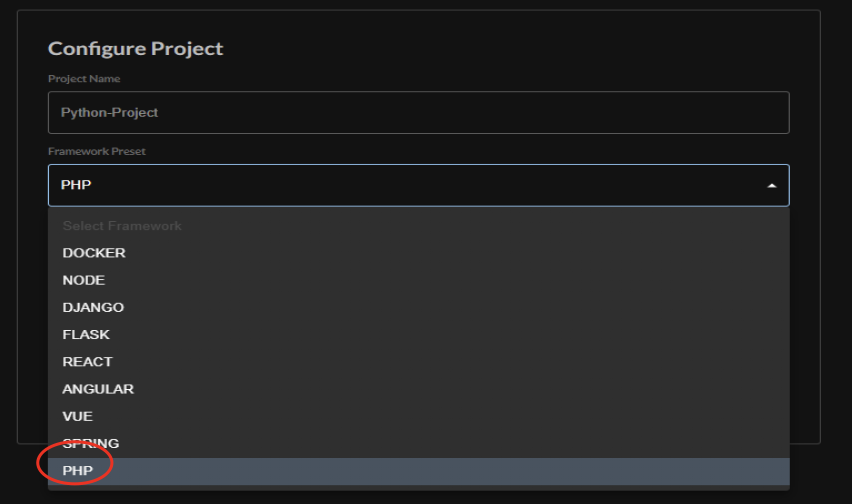
## Step 2: Select PHP as your Framework Preset
ToyStack can automatically deploy your PHP projects. Simply select `PHP` as the preset while deploying the application.
If you run into issues or you'd like to use your custom configuration, you can use `DOCKER` as the framework instead. You can read more about it in the [Deploying with Docker](/get-started/deploying-with-docker) page.
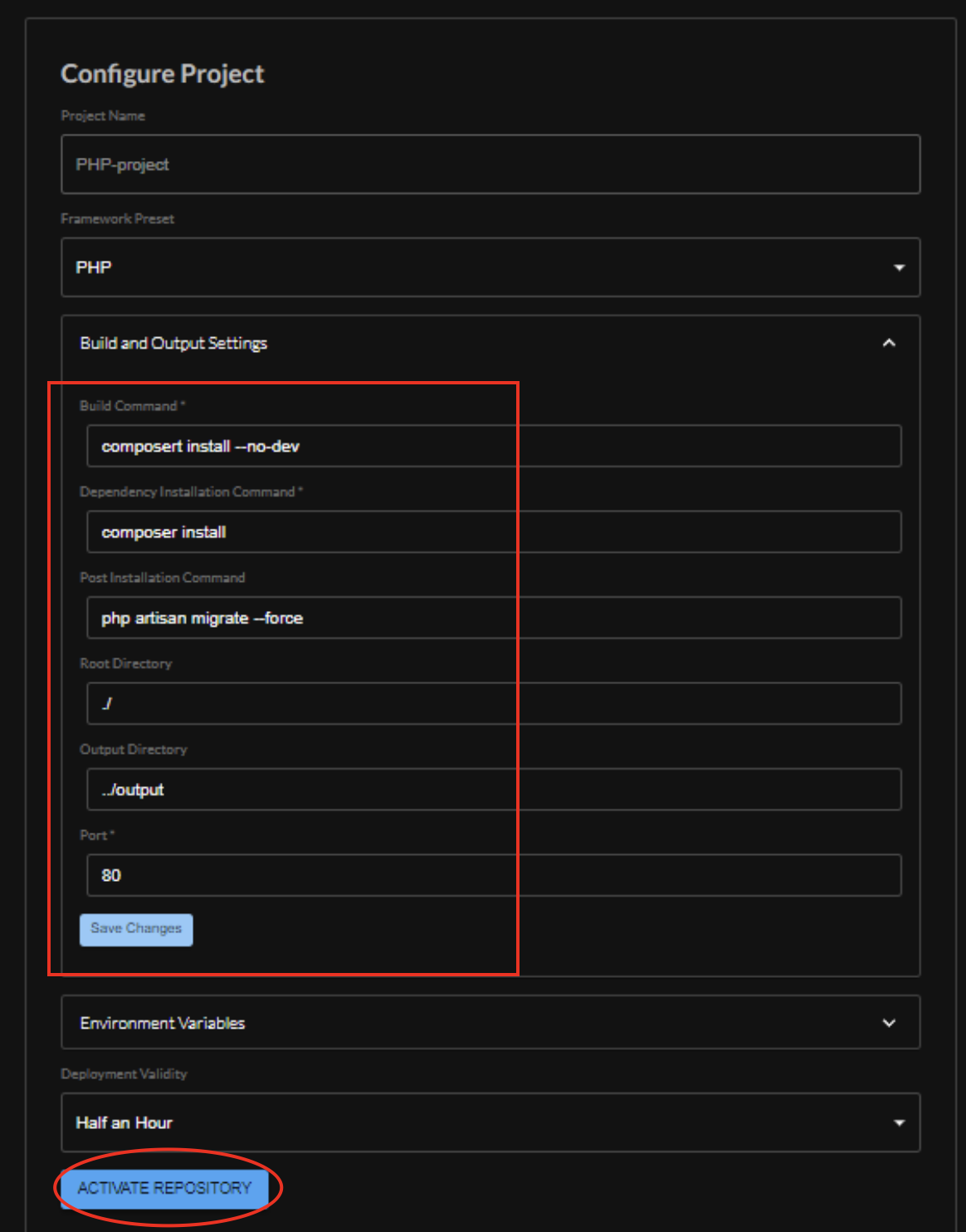
## Step 3: Specify Build Commands
There may be framework specific build commands that are needed for your application. You can specify that in the configuration.
## Step 4: Input environment variables
{% hint style="info" %}
Please ensure the `PORT` number matches the one specified in your app or`Dockerfile`
{% endhint %}
For detailed instructions, please see the [Environment Variables](/get-started/environment-variables-setup) page.
## Step 5: Choose a plan
## Step 6: Deploy
Simply select the branch you want to deploy, its deployment validity and ToyStack will deploy it
# ReactJS
Instructions for connecting your ReactJS apps and deploying them on ToyStack
## Step 1: Import your Git repository
Go to the [ToyStack Dashboard](https://dashboard.toystack.ai) and create a new project using your repository.
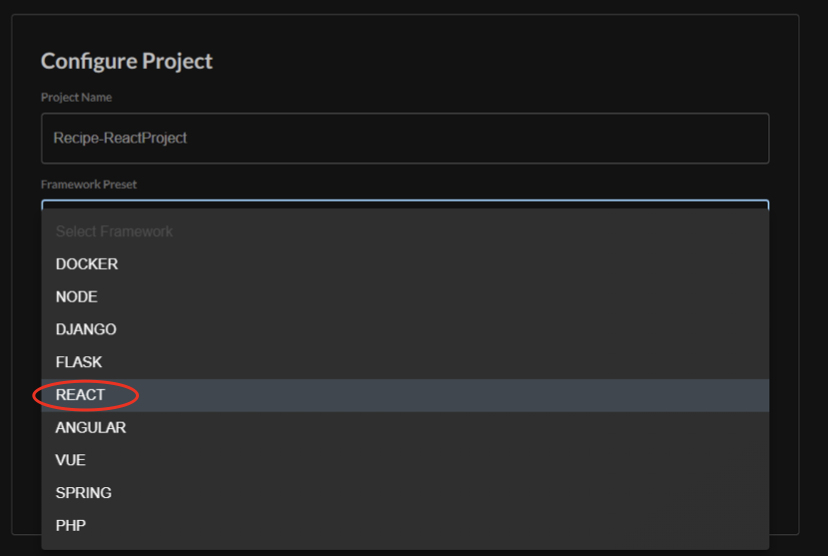
## Step 2: Select React as your Framework Preset
ToyStack can automatically deploy your React projects. Simply select `React` as the preset while deploying the application.
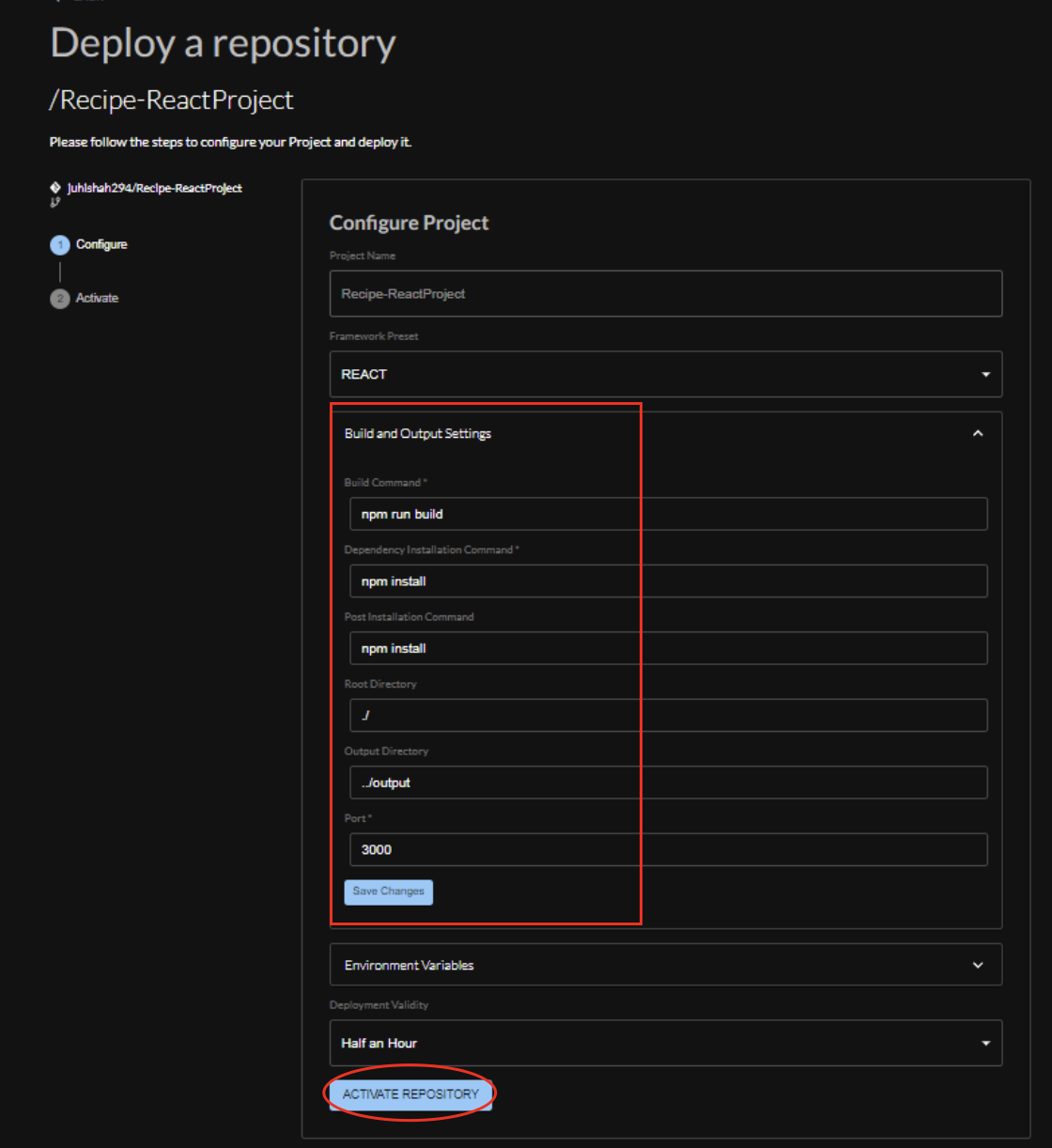
## Step 3: Specify Build Commands
There may be framework specific build commands that are needed for your application. You can specify that in the configuration.
## Step 4: Input environment variables
For detailed instructions, please see the [Environment Variables](/get-started/environment-variables-setup) page.
## Step 5: Choose a plan
## Step 6: Deploy
Simply select the branch you want to deploy, its deployment validity and ToyStack will deploy it
# AstroJs
Instructions for connecting your AstroJS apps and deploying them on ToyStack
Step 1: Import your Git repository
Go to the [ToyStack Dashboard](https://dashboard.toystack.ai) and create a new project using your repository.
## Step 2: Select Astro as your Framework Preset
ToyStack can automatically deploy your Astro projects. Simply select Astro as the preset while deploying the application.
## Step 3: Specify Build Commands
There may be framework specific build commands that are needed for your application. You can specify that in the configuration.
## Step 4: Input environment variables
For detailed instructions, please see the [Environment Variables](/get-started/environment-variables-setup) page.
## Step 5: Choose a plan
## Step 6: Deploy
Simply select the branch you want to deploy, its deployment validity and ToyStack will deploy it.
# VueJs
Instructions for connecting your VueJs apps and deploying them on ToyStack
## Step 1: Import your Git repository
Go to the [ToyStack Dashboard](https://dashboard.toystack.ai) and create a new project using your repository.
## Step 2: Select VueJs as your Framework Preset
ToyStack can automatically deploy your Vue projects. Simply select Vue as the preset while deploying the application.
## Step 3: Specify Build Commands
There may be framework specific build commands that are needed for your application. You can specify that in the configuration or u can keep the default build commands provided on our dashboard.
## Step 4: Input environment variables
For detailed instructions, please see the [Environment Variables](https://docs.toystack.ai/get-started/environment-variables-setup) page.
## Step 5: Choose a plan
## Step 6: Deploy
Simply select the branch you want to deploy, its deployment validity and ToyStack will deploy it.
# Solara
Instructions for connecting your Solara apps and deploying them on ToyStack
## Step 1: Import your Git repository
Go to the [ToyStack Dashboard](https://dashboard.toystack.ai) and create a new project using your repository.
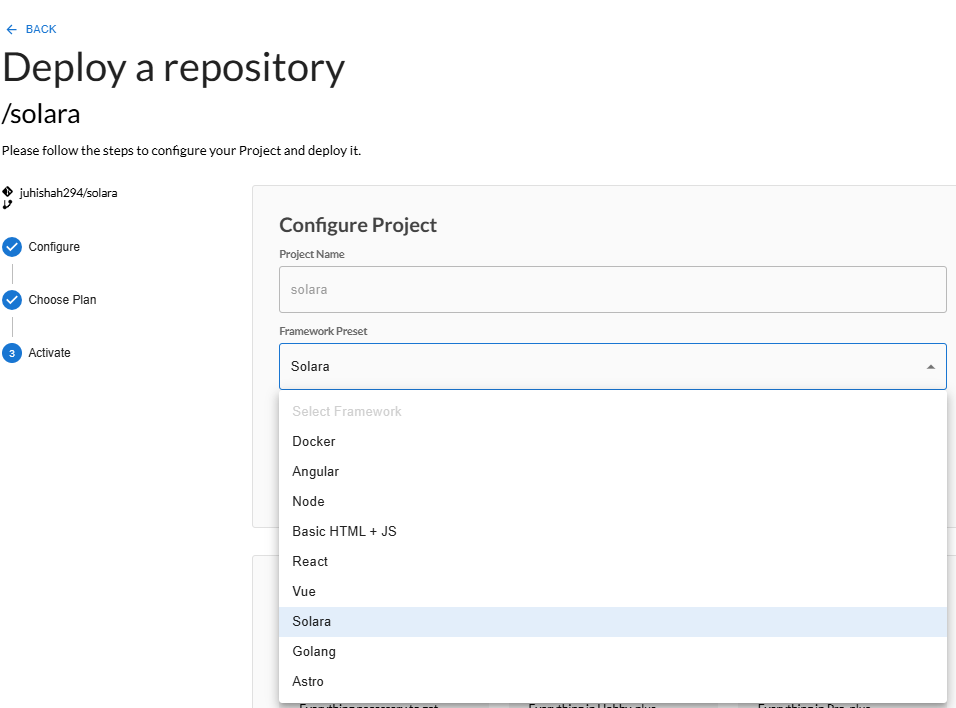
## Step 2: Select Solara as your Framework Preset
ToyStack can automatically deploy your Solara projects. Simply select Solara as the preset while deploying the application.
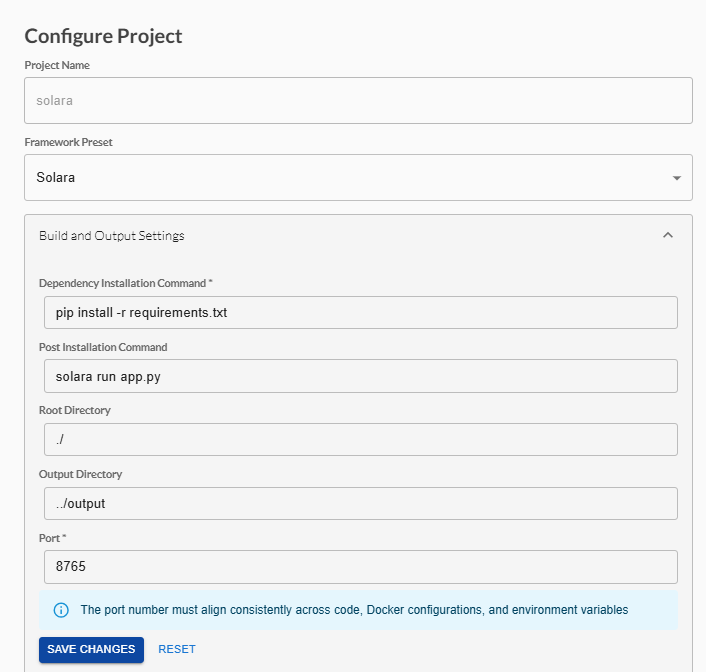
## Step 3: Specify Build Commands
There may be framework specific build commands that are needed for your application. You can specify that in the configuration.
## Step 4: Input environment variables
For detailed instructions, please see the [Environment Variables](/get-started/environment-variables-setup) page.
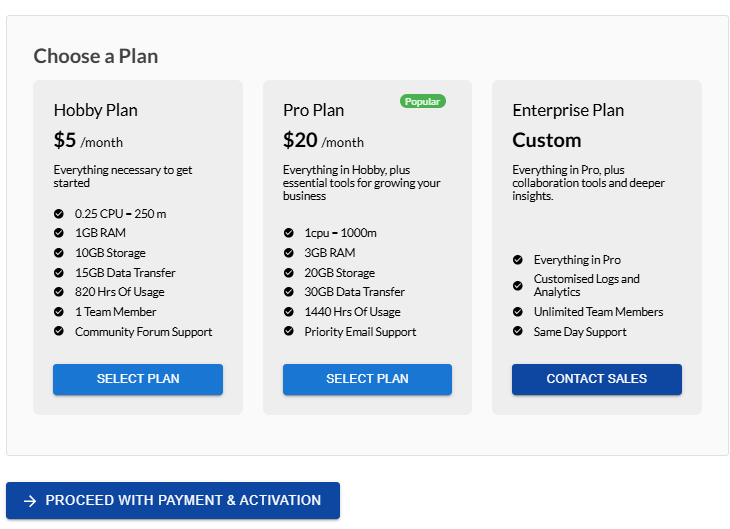
## Step 5: Choose a plan
## Step 6: Deploy
Simply select the branch you want to deploy, its deployment validity and ToyStack will deploy it.


.png?alt=media&token=0f3fca54-1e8a-4e46-91d6-2ea1a16419c3)
.png?alt=media&token=e2ea493a-c907-4037-8c5f-7b4096e81438)

.png?alt=media&token=4f7b2921-3f23-43fb-85b4-2ef236fe5417)
.png?alt=media&token=0b0354b6-ee5d-4f0d-bb9b-71038e59445c)
.png?alt=media&token=7baa077a-bbec-45f2-a4d4-919b6a8c045a)
.png?alt=media&token=9353e703-c138-4bd2-87ab-87c9e74456dc)
.png?alt=media&token=07ac400c-cbf9-4caf-a7c2-1af7e60fa996)
.png?alt=media&token=02427be0-cff1-44a0-8e02-88c43a9fa00f)
.png?alt=media&token=4f109d35-5519-4828-b5b3-2ad8510aab40)
.png?alt=media&token=73fca102-7d8d-43c2-a1d9-a3630e79210e)
.png?alt=media&token=0947f5bd-a176-4140-9d02-506b190fbaf6)
.png?alt=media&token=2c1d5874-27f5-499b-900f-b95538e0a5cb)
.png?alt=media&token=9c76dc57-5223-45fc-9bed-56a9209fceb9)